How does the administration and invoicing of sponsored products work? And what exactly is an account budget, for example? On this page we list everything for you.
Good to know
- You only pay for actual clicks that take place, so you (still) never pay in advance.
- Every 1st of the month you automatically receive an invoice for your sponsored products campaigns for the actual clicks that took place. You can find this invoice in the portal.
You no longer have to sign an order form. - If you want to manage your expenses at the account level, you can optionally set an account budget.
- You always use an account budget:
- If you need a PO number on the invoice.
- When you use multiple billing addresses for sponsored products.
Important: campaigns stop when your account budget runs out or expires, regardless of your campaign and daily limits.
Account budget
An account budget is a limit on account level. You can use this in addition to your campaign limits on order to control your expenses.
Setting an account budget is optional, unless you work with a PO number and/or use multiple billing addresses for Sponsored Products. In that case, always set an account budget and fill in the correct information when creating the budget.
You pay nothing in advance when using an account budget.

-
If you need a PO number on the invoice, always set an account budget.
-
You can enter the PO number yourself when creating a new account budget.
-
A separate invoice is created for each PO number.
-
The PO number can only be added/changed when creating the account budget and/or before the account budget starts running (status Planned).
-
Always set an account budget.
-
Select the correct billing address when creating the account budget.
Status account budget
What do the different statuses of your account budget mean? And what can you adjust per status of your account budget? We are happy to explain.
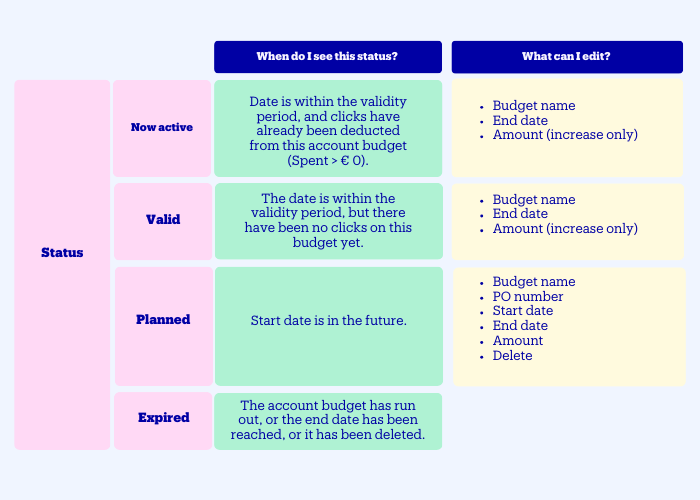
Multiple account budgets for different periods
You can set up multiple account budgets at the same time for different consecutive periods.
However, only one budget is used at any given time. How do we determine which budget that is?
- We check which budgets are active at that moment.
- If you have set an end date, we select the budget that expires first.
- If the end dates are the same, the budget that was created first will be used.
Once the account budget has been spent or the end date has been reached, no more ads will be shown and all campaigns will be paused.
Portfolio budgets: multiple budgets side by side
With Portfolio Budgets, you can create multiple separate budgets within a single bol account. Instead of funding all campaigns from one general account budget, you allocate your budget across specific portfolios (for example, by brand, business unit, or department) with separate PO numbers that align with your internal invoicing and procurement processes.
You link the relevant campaigns to each portfolio budget. Once a portfolio budget has been spent or has expired, the associated campaigns will stop running (unless they are linked to another active budget).
Portfolio Budgets are completely optional and available if you already use account budgets. If you only use campaign budgets or the regular account budget and this currently works well for your organisation, we recommend continuing to advertise that way.
Tip: You can link campaigns to multiple portfolio budgets to ensure a seamless transition, for example from your current quarterly budget to the next one.
Are your campaigns continuing, but your PO numbers changing (for example for a new quarter)? Create a new budget and copy the linked campaigns from an existing budget.
How to set an account budget
Step-by-step guide
- Go to the‘Budget’ page.
- Turn on the‘Set account budget’ option.
- Enter a name (description) for your budget and specify the budget amount.
- Enter the corresponding Purchase Order (PO) number (if applicable).
- Set a start date and, optionally, an end date.
Please note that your campaigns will stop if you have enabled Account budgets, but there are no valid account budgets available.
- Save the account budget.
Use of account budgets
Multiple account budgets can be valid at the same time, for example in overlapping periods.
However, only one budget is always used to deduct your costs at a time.
This is how we determine which budget is used:
- We check which budgets are valid on the current date.
- Based on the end date, we select the budget that expires first (budgets without a valid
end date expire last). - If we cannot deduct a click from the largest budget with the soonest end date, then the budget that was created first will be used.
Once the account budget is fully used or expires, ads will no longer be served and all campaigns will be disabled.
Invoice
You only pay for actual clicks, so you (still) never pay in advance.
The costs are automatically calculated and appear on the all-in-one invoice that you receive from us every month. The invoice specification lists all transactions and the corresponding date. Please note: the date is our processing date of the transaction and not the date on which the costs were actually incurred. There is a difference of 3 days. An example: The specification of the invoice states the date 30-01, so the costs were actually incurred on 27-01.
- Every 1st of the month you will automatically receive an invoice for the actual clicks that
took place the month before. This invoice can be found in the portal and will also be sent
by e-mail. The Excel specification is only available in the portal. - The invoice shows Sponsored Products Ads as the description.
- If you use PO numbers, you will receive a separate invoice for each PO number.
I need a PO number on the invoice
Always use account budgets. You can enter the PO number when creating the account budget.
Make sure you do this before your campaigns start running.
If you work with multiple PO numbers, create a new account budget on time.
If you use PO numbers, you will receive a separate invoice for each PO number.
My invoice should be sent to another address
If the invoice should be sent to another address (another billing party), please contact
avb-administratie@bol.com.
If you use multiple billing parties for Sponsored Products, please inform avbadministratie@bol.com. Please indicate:
- whether you also use this billing address for other advertising propositions (for
example Display advertising) - whether the invoice should always be sent to this address
You must then create a new account budget yourself and select the correct billing address. Please note that changes do not impact on existing account budgets.
Frequently asked questions