1. Log in to the Supply Chain portal (SCP) using your email account.
If you don’t have a Supply Chain portal (SCP) account yet, you can see on this page how to request an SCP account.
2. Go to Slot booking - Create slot booking

On this page, you can find a checklist and step-by-step plan for creating a slot booking for fastlane.
A slot booking is only possible if the following conditions are met:
If your email account does not have the carrier role in the Supply Chain portal, please refer to this page for instructions on how to request it.
Make sure you have the following information at hand when the slot booking is being delivered:
Follow the steps below to create a slot booking
If you don’t have a Supply Chain portal (SCP) account yet, you can see on this page how to request an SCP account.
Select the correct date and the correct warehouse for the slot booking.
Select the delivery date
The delivery date provided in the pre-advice submitted by the supplier is the determining factor here.

Select the correct warehouse
Select the correct warehouse to ensure it matches the warehouse indicated in the pre-announcement.


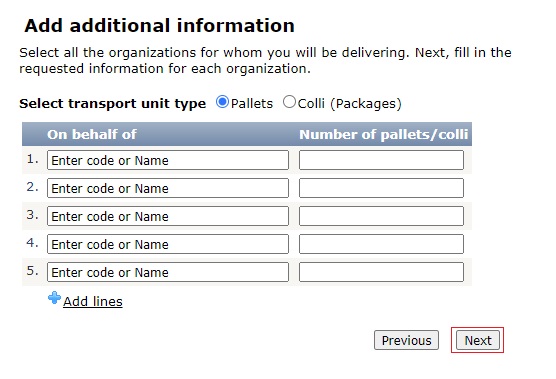
Provide the supplier(s) for whom the delivery will be made and indicate the number of pallets or units comprising this slot booking.
Indicate for which supplier the delivery will be made
You can search by supplierID or supplier name

Specify the number of pallets or units being delivered for the respective supplier

Specify separately for each supplier what will be delivered
Click Next
Choose the desired time for the slot booking
Here, you can only select from available times. A time that is not selected is no longer available.
Choose the time slot that fits within your schedule

Click Next

Verify the details of the slot booking.
Controleer of de gegevens juist zijn

Provide a license plate if possible
This option is not available for every warehouse and is not mandatory. Where possible, providing a license plate may expedite the slot booking process. This information can also be added later once the slot booking is created.

Go back one step in the process and adjust the information accordingly.
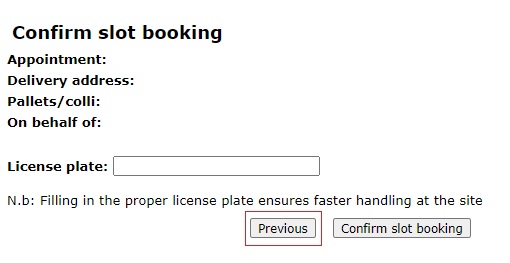
Confirm the slot booking.

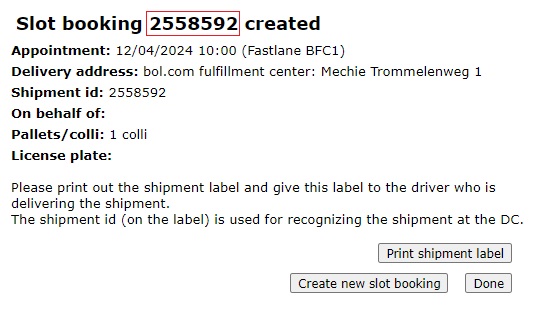
The slot booking has been created.
A slot booking has its own shipmentID, which should be used to register the shipment upon arrival.
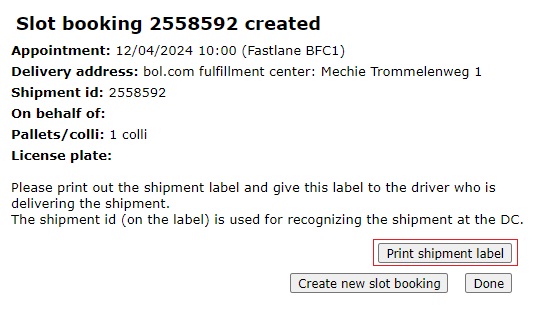
If desired, you can print the label here in advance.
With “Create new slot booking,” you can proceed immediately to create another slot booking for a different day or warehouse.

All set? Click on “Done” then.

In the slot booking overview, you’ll find a summary of the created slot bookings and the option to perform several actions.

Here, a shipment label can be printed for each shipment

If a license plate was not known earlier, it can still be added at a later stage.

Once a slot booking is created, it cannot be modified. If there are changes in the schedule and you need to deliver at a different time, the slot booking must be deleted, and a new slot booking must be created.
Please note that a slot booking can only be made until 8:00 PM on the day before delivery.
